🤖10 Pitfalls When Integrating ABB Robot Controllers with PC-SDK🕳️
Back to Top
To reach a broader audience, this article has been translated from Japanese.
You can find the original version here.
On October 8, 2025, a piece of news that shook the robotics industry broke. It was an article reporting that SoftBank Group would acquire the robotics division from Swiss heavy electrical giant ABB[1].
Around that time, I was battling day and night developing a program to integrate with ABB’s robot controller. I attempted to use the PC-SDK[2], a robot control API, but repeatedly fell into pitfalls. It truly felt like playing a "death game." Through countless failures, I verified the API’s behavior, learned how to use it, and devised the optimal procedure to resolve each issue and task one by one.
That experience has since become my know-how for mastering the PC-SDK. Here, I’ve picked out 10 memorable pitfalls. I’d like to share them as a memo on what pitfalls exist and how to avoid them.
If you want to know what offline teaching or a robot control API is, please see "産業用ロボットの教示方法とその応用".
What is PC-SDK
#The PC-SDK introduced here refers to a development kit (library) for controlling and monitoring ABB’s robot controllers/robots from a PC. It uses the .NET Framework to create custom applications that run on Windows PCs. Since it depends on the .NET Framework and the communication driver described later is Windows‐only, it doesn’t support Linux.
Main features
- Controller State Access: Get the execution state of the robot controller, retrieve robot poses, read/write I/O signals
- Program Operations: Load, start, and stop programs
- Data Access: Read/write variables in robot programs
- File Transfer: Send and receive files between the PC and the robot controller
In addition to PC-SDK, there is RobotStudio[3] for development. RobotStudio includes a virtual robot controller and is a GUI application for offline teaching. Since PC-SDK can also connect to this virtual controller, you can develop with PC-SDK even without physical hardware as long as you have RobotStudio.
Pitfall Tier Table
#I have ranked the pitfalls encountered when using PC-SDK by damage level. This serves as the basis for evaluating each pitfall.
| Rank | Damage Level |
|---|---|
| S | Unbelievable!? How can you work around this? The kind of hit that causes psychological damage. |
| A | Huh, why? That surprised me—well, I guess it’ll somehow be okay? |
| B | I see, this happens often. That one got me. |
| C | Can be avoided in advance or isn’t painful if it occurs. |
These are my personal impressions.
🕳️1. Little Information Available on the Web B
#Pitfall
When using an open-source library, if you don’t understand something you search online, right? Doing the same for PC-SDK or its APIs yields almost no information—you’ll only find ABB’s site or English Q&A sites like Stack Overflow.
There are almost no personal sites in Japanese or explanations from tech companies other than ABB. ABB’s site itself has very few sample codes. Therefore, I carefully search English Q&A sites, translate[4] them, and verify the content. However, sometimes the information isn’t very useful or is outdated by five to ten years.
Countermeasure
You can download API references and manuals as PDF files from the official site (or via web search). Keep them on hand as primary sources to broadly understand the content, and refer to them whenever you have questions.
Recently, I’ve been using Google’s NotebookLM. If you register the API reference PDFs, manuals, and other useful sites with NotebookLM, you can ask questions via prompt. It also summarizes and shows evidence, making it easier to access information than searching yourself.
🕳️2. AI Frequently Hallucinates B
#Pitfall
Nowadays, instead of searching, I often ask AI when I don’t understand something:
“Tell me how to use the PC-SDK API xxxx.”
“Show me a sample using xxxx to perform xxxxx.”
Because of the issue in “🕳️1. Little Information Available on the Web,” the AI outputs code samples with non-existent APIs or incorrect arguments.
It casually and naturally lies. If you point out the mistakes and prompt again, it might produce different wrong arguments or old code that doesn’t work, making it almost useless.
Countermeasure
- Create a project in Visual Studio (or similar), reference the PC-SDK library, and check the APIs in the Object Browser.
- Open the included
abb.robotics.controllers.pc.xmlin an editor and use the API descriptions as reference.
🕳️3. Sometimes the Robot Controller Cannot Be Found A
#Pitfall
The API searches for robot controllers on the local network (via UDP broadcast), then logs into and connects to any found controllers. RobotStudio connects instantly since it runs on the local PC, but in a production environment searches sometimes timeout and only succeed on the second try—strange behavior.
Countermeasure
In environments with multiple network interfaces (NICs), like 4 or 8 NICs, the search can timeout because it doesn’t know which network to use. Solve this by specifying the robot controller’s IP address before searching:
var scanner = new NetworkScanner();

// Directly specify the IP address of the robot controller and register it into the scanner’s discovery list
// This allows PC-SDK to decide which NIC to use
NetworkScanner.AddRemoteController("xxx.xxx.xxx.xxx");

// Search by specifying the UUID of the robot controller obtained in advance
var systemId = Guid.Parse("xxxxxxxx-xxxx-xxxx-xxxx-xxxxxxxxxxxx");
// systemId, timeout [ms], retry count
var controllerInfo = scanner.Find(systemId, 1000, 3);

if (controllerInfo == null)
{
    throw new Exception("Controller not found.");
}

// Connect to the physical controller
_controller = Controller.Connect(controllerInfo, ConnectionType.Standalone);
Specifying the IP address may make the Find() call less meaningful, but it solves the issue.
🕳️4. Forgetting to Acquire Control Authority C
#Pitfall
After connecting to the controller, if you perform operations like:
- Updating RAPID[5] variables
- Turning the servo motors on
- Loading (task mapping) a RAPID program
- Starting a RAPID program
…you’ll get errors.
Countermeasure
Request Mastership (write permission) on the controller before performing updates. There are plenty of examples in sample code or online, so don’t panic:
using (Mastership.Request(_controller))
{
    // Write the update process here
}
Mastership requests can fail, so implement retries or exception handling as needed. Note that read-only operations—like fetching the controller status or getting RAPID variable values—do not require Mastership.
🕳️5. Unable to Connect to the Robot Controller in the Production Environment S
#Pitfall
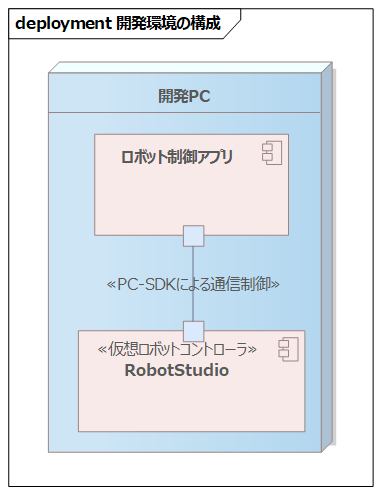
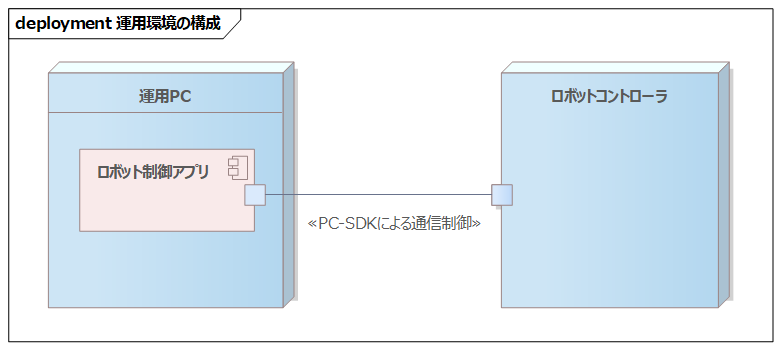
In the development environment you can connect to the virtual controller in RobotStudio without issues. In production, even though the IP address is correct and you can ping it, you cannot retrieve the robot controller’s status.
Development Environment Configuration
Production Environment Configuration
Countermeasure
Installing RobotStudio also installs the driver required for communicating with robot controllers in the background. Without this driver, you cannot communicate.
In production you might not install RobotStudio and only use the PC-SDK libraries, so the driver isn’t installed and you get errors.
Download RobotWare_Tools_and_Utilities_x.x.x.zip (x.x.x is the version) from ABB’s site, extract it, and run RobotCommunicationRuntime/ABB Industrial Robot Communication Runtime.msi to install the driver. Then PC-SDK can connect. Who would know that?
🕳️6. Unable to Connect to RobotStudio from a Remote PC C
#Pitfall
I tested the scenario from “🕳️5. Unable to Connect to the Robot Controller in the Production Environment” in my development environment:
- Prepare two PCs.
- Use one (A) as the application environment.
- On the other (B), install RobotStudio (virtual robot controller).
- Install the
RobotWare_Tools_and_Utilities_x.x.x.zipdriver on both A and B. - Attempt to connect from A to B’s virtual controller using PC-SDK.
Connection Test Environment Configuration
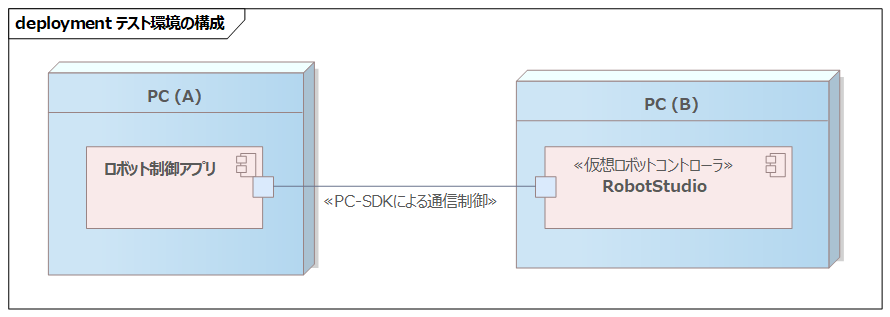
Despite trying, the connection failed.
Countermeasure
RobotStudio only accepts access from the local PC, so remote PC connections aren’t supported. This is likely due to licensing (1 RobotStudio per license). There’s no choice here.
🕳️7. Unable to Execute RAPID in the Production Environment A
#Pitfall
In RobotStudio you can log in and load or run RAPID without issue. In production, however, you can connect to the controller but get exceptions when instructing it to load or run RAPID. Why?
Countermeasure
The default user when connecting to the robot controller is Default User, but its permissions differ between RobotStudio and the actual controller. There are various permissions, but the execution and program load permissions differ:
| Permission | RobotStudio | Physical Controller |
|---|---|---|
| Execution Permission | Yes | No |
| Load Permission | Yes | No |
Even though Default User has many permissions granted by default in RobotStudio, some permissions aren’t granted on the physical controller. Create a new user on the physical controller, grant it the same permissions as in RobotStudio, and log in with that user—you’ll then be able to execute.
Note that in RobotStudio’s virtual controller you cannot create users or grant permissions; this is only possible on the physical controller, which led to this pitfall.
🕳️8. Unable to Output Digital Signals B
#Pitfall
The robot controller has physical I/O ports for interfacing with various devices using digital signals (0 or 1). Writing 0 or 1 to these output ports caused exceptions and no output was produced.
Countermeasure
On ABB robot controllers, you specify which physical interface to assign digital outputs to in the I/O configuration. At this time, you also specify the Access Level, which defaults to Default.
Access Level determines read/write availability depending on the controlling context:
| Access Level | RAPID | Local Client in Auto Mode |
Remote Client in Auto Mode |
|---|---|---|---|
| All | Write Enabled | Write Enabled | Write Enabled |
| AWACCESS | Write Enabled | Write Enabled | Read Only |
| Default | Write Enabled | Read Only | Read Only |
| Internal | Read Only | Read Only | Read Only |
| ReadOnly | Read Only | Read Only | Read Only |
Auto Mode refers to when the robot is driven by a program instead of manual operation. When the robot controller is in Auto Mode and you access and manipulate I/O externally, it falls under “Remote Client in Auto Mode.” Program execution corresponds to the “RAPID” column.
Since we’re using PC-SDK externally in Auto Mode, we’re in the “Remote Client in Auto Mode” row and “Default” column, which is Read Only. In other words, because the Access Level was Default, writing was not permitted. You must set the Access Level to All to enable writing.
Therefore, assign the digital output with Access Level set to All, and writing works correctly.
You can apparently add new Access Levels as well.
🕳️9. Array Data Transfer Is Slow A
#Pitfall
Definition of the array on the RAPID side:
MODULE MainModule
    PERS num dataArray{100};
ENDMODULE
A typical way to write values into the array is:
// Fetch it only once at the beginning
RapidData rd = _controller.Rapid.GetRapidData(
        "T_ROB1", "MainModule", "dataArray");
  :
using (Mastership.Request(_controller))
{
    for (int i = 0; i < 100; i++)
    {
        rd.WriteItem(new Num(i), i);
    }
}
Here, each call to rd.WriteItem() performs a network access, so it takes hundreds of milliseconds to several seconds in total.
Countermeasure
Minimize the number of rd.WriteItem() calls by setting data all at once. Define a struct with a RECORD type on the RAPID side:
MODULE MainModule
    RECORD StructData
        num value1;
        num value2;
        num value3;
        num value4;
        num value5;
    ENDRECORD
    :
ENDMODULE
On the C# side, you can reference that struct as a UserDefined type. To set values in a UserDefined type, do the following:
// Fetch only once at the beginning (creates a copy of StructData on the RAPID side)
UserDefined ud = new UserDefined(_controller.Rapid.GetRapidDataType(
            "T_ROB1","MainModule","StructData"));
// Fetch only once at the beginning (creates a reference to StructData on the RAPID side)
RapidData rd = _controller.Rapid.GetRapidData(
            "T_ROB1","MainModule","StructData");
  :
using (Mastership.Request(_controller))
{
    int value1 = 1;
    int value2 = 2;
    int value3 = 3;
    int value4 = 4;
    int value5 = 5;

    // Create the data string to set in UserDefined
    var structData = $"[{value1},{value2},{value3},{value4},{value5}]";

    // Set the data in UserDefined
    ud.FillFromString2(structData);

    // Transfer data to the robot controller
    rd.Value = ud;
}
Also, the RAPID data types robtarget and jointtarget are very large. If you only need to update part of the data, it can be effective to transfer only those values and perform updates on the RAPID side.
You can directly set all elements with ud.FillFromString2("[0,1,2,3,4,5,.....]"). However, for very large structs or arrays, sometimes not all values get set, so be careful. Also, while parsing takes time, it’s negligible compared to network access.
If you ask an AI to provide a sample, it will likely suggest an old or non-existent API, causing compile errors.
🕳️10. Executing RAPID on the Physical Robot Causes a Runtime Error S
#Pitfall
A RAPID program that runs fine in the RobotStudio simulator and passes syntax checks may produce a runtime error when run on the physical machine. If you see the following exception, take note!!
Operation is illegal in current execution state
It’s a runtime error, so you know it’s due to some state, but you have no clue which. Checking the controller logs doesn’t reveal the direct cause. Among “controller gotchas,” an unknown cause runtime error is the worst.
Countermeasure
Since it runs on the simulator, I intuited that an environmental setting difference with production was the cause. I commented out all the RAPID source code, then gradually uncommented sections in a binary search–like process to see where it failed. (Perhaps step debugging could have worked too.)
As a result, there were two issues:
- I/O definitions were not set on the physical machine
- The I/O names defined in the simulator (specified as strings) couldn’t be found, causing runtime errors.
- The interrupt timer trigger time was too short on the physical machine
- Set to 10 ms, which worked in the simulator but caused runtime errors on the actual controller.
Fixing these issues was simple, but finding them took effort. Be aware of runtime errors caused by environmental differences.
Development Schedule to Mitigate Risks
#How was it? Most of these issues didn’t appear in the development environment (RobotStudio simulator) but surfaced in production (physical controller). And just as you climb out of one hole, you fall into another. It’s discouraging.
In the development environment, security is lax and users connecting to the virtual controller have broad permissions. In production, security is tight and permissions are minimized, so issues often occur.
If the production environment is remote, on-site work incurs high personnel, time, travel, and financial costs. Planning to develop and test in the dev environment and only perform system tests in production in one go risks schedule delays due to unforeseen issues.
To mitigate risks, I strongly recommend setting multiple milestones within the schedule and conducting on-site verifications in stages. Also, delegating testing to local engineers (though challenging) can be very effective from a cost-benefit standpoint.
Conclusion
#In Japan, global robotics leaders like FANUC and YASKAWA have high market shares, so ABB’s share in Europe is only a few percent.
ABB’s robot development center is in Switzerland, so for advanced technical issues support in Japan may escalate to engineers in the home country. Due to time differences and inter-site processes, responses may take time.
This article has been a tough look at PC-SDK’s pitfalls, but ABB’s robot controllers and RobotStudio’s offline teaching environment are excellent in function and performance. With ABB’s robotics division now part of SoftBank Group, it wouldn’t be surprising if they aim to expand their market share in Japan. In that case, their sales and support teams would likely become larger and more robust. I look forward to ABB’s future robot business developments.
I listed some pitfalls in PC-SDK this time, but RAPID itself has pitfalls lurking. If there’s a chance, I hope to write about those too.
Pronounced “A-B-B.” Established as a joint venture between Asea and Brown Boveri (ASEA Brown Boveri). ↩︎
An SDK (library) for connecting from a PC to an ABB robot controller. ↩︎
Offline teaching (simulation) software provided by ABB. ↩︎
DeepL, Google Translate, right-click in the browser and select “Translate to Japanese,” etc. ↩︎
A dedicated programming language developed to control ABB industrial robots. ↩︎