How to run MCP servers published in the GitHub MCP Registry on VS Code
Back to Top
To reach a broader audience, this article has been translated from Japanese.
You can find the original version here.
Introduction
#An MCP server is a mechanism that defines executable "services" that agents or tools can invoke.
On this page, we will show the steps to launch an MCP server (using Markitdown in this case) from the MCP extension in VS Code and invoke it with an AI agent/MCP client.
- Terminology (usage in this article)
- MCP (Model Context Protocol) server
A mechanism that provides agents with executable tools.
Agents can perform external processes by invoking the "tools" of the MCP server. - Markitdown (
microsoft/markitdown)
An MCP server that converts PDFs and pptx files into Markdown. - uvx
The launcher for Markitdown.
The tool that the MCP server used in this test expects as thecommand.
- MCP (Model Context Protocol) server
Environment
#- Windows 11
- VS Code
- Markitdown@1.8.1: the MCP server used for verification
- uvx@0.10.9
- Copilot: the AI agent used to invoke the MCP server
- MCP Inspector@0.21.0: the MCP client used to invoke the MCP server
Steps
#In this guide, we will use Markitdown to verify the operation.
-
Install the MCP server in VS Code
-
If installing from the GitHub MCP Registry
- Open the GitHub MCP Registry in your browser and click the install button on the MCP you want to install.
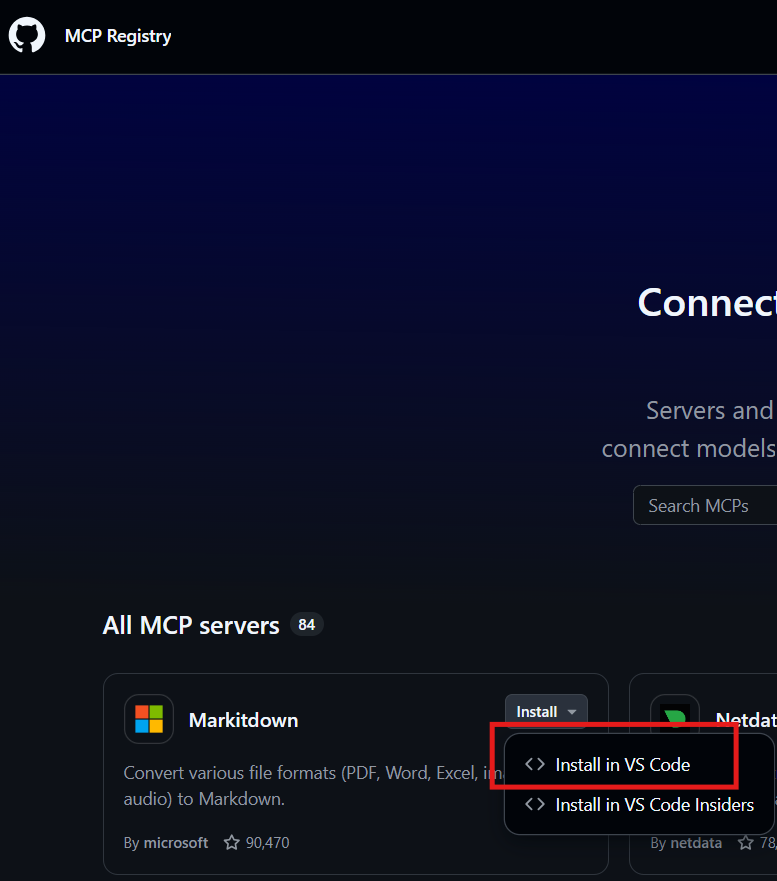
- Open the GitHub MCP Registry in your browser and click the install button on the MCP you want to install.
-
If installing from Extensions in VS Code
- Enable the setting so you can search for MCP servers in VS Code.
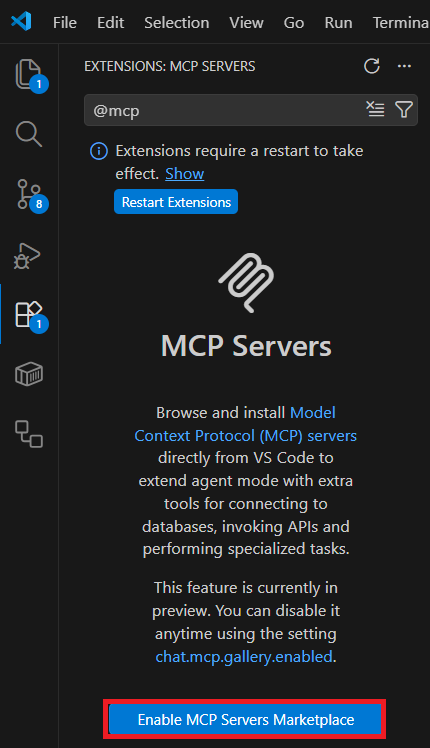
Information■ If you want to disable this setting
Open Settings and uncheck the box.
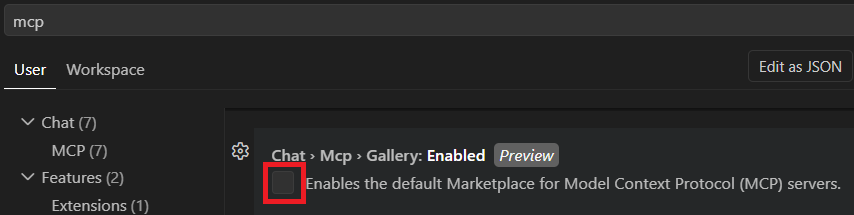
- With filtering (
@mcp), the MCPs will be displayed, so click the install button for the MCP you want to install.
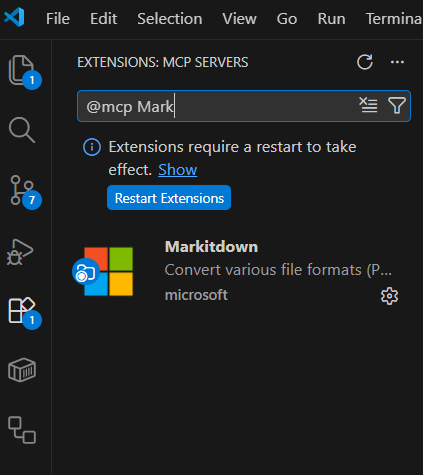
- Enable the setting so you can search for MCP servers in VS Code.
-
After installing the MCP server, its configuration is added to
.vscode/mcp.json..vscode/mcp.json{ "servers": { "microsoft/markitdown": { // MCP server name "type": "stdio", // Type of MCP server "command": "uvx", // Command expected by the MCP server "args": [ // Arguments passed to the command "markitdown-mcp@0.0.1a4" ], "gallery": "https://api.mcp.github.com", "version": "1.0.0" } }, "inputs": [] }
-
-
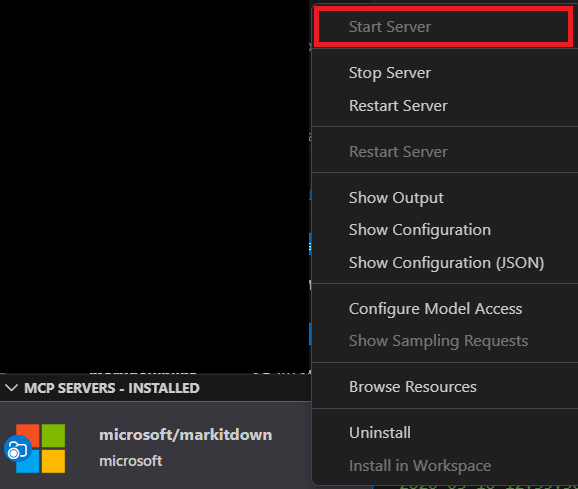
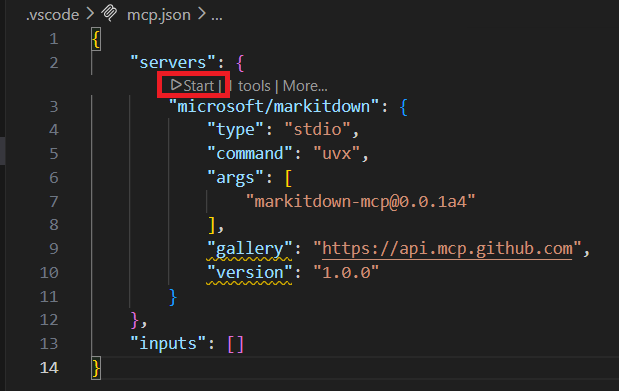
Start the MCP server
Load the settings from the.vscode/mcp.jsonfile created after installation and start the local process.-
Start from VS Code's Extensions panel
-
Start from
.vscode/mcp.json
-
Example startup log
2026-03-10 12:35:30.848 [info] Starting server microsoft/markitdown 2026-03-10 12:35:30.848 [info] Connection state: Starting 2026-03-10 12:35:30.849 [info] Starting server from LocalProcess extension host 2026-03-10 12:35:30.920 [info] Connection state: Starting 2026-03-10 12:35:30.920 [info] Connection state: Running 2026-03-10 12:35:35.925 [info] Waiting for server to respond to `initialize` request... 2026-03-10 12:35:40.922 [info] Waiting for server to respond to `initialize` request... 2026-03-10 12:35:45.927 [info] Waiting for server to respond to `initialize` request... 2026-03-10 12:35:50.921 [info] Waiting for server to respond to `initialize` request... 2026-03-10 12:35:55.923 [info] Waiting for server to respond to `initialize` request... 2026-03-10 12:36:00.924 [info] Waiting for server to respond to `initialize` request... # The rest is omittedInformation■ Connection error prompting uvx installation
The Markitdown used for this test is Python-based and uses uvx as the command.
Therefore, if uvx is not in your PATH, the following connection error occurs:2026-03-10 12:35:30.848 [info] Starting server microsoft/markitdown 2026-03-10 12:35:30.848 [info] Connection state: Starting 2026-03-10 12:35:30.849 [info] Starting server from LocalProcess extension host 2026-03-10 12:35:30.920 [info] Connection state: Starting 2026-03-10 12:35:30.920 [info] Connection state: Error spawn uvx ENOENT■ Installing uvx and adding it to your PATH resolves the error
- Install uvx
PS > powershell -ExecutionPolicy ByPass -c "irm https://astral.sh/uv/install.ps1 | iex"

downloading uv 0.10.9 (x86_64-pc-windows-msvc)
failed to download from https://releases.astral.sh/github/uv/releases/download/0.10.9
trying alternative download URL
installing to C:\Users\xxx\.local\bin
uv.exe
uvx.exe
uvw.exe
everything's installed!

To add C:\Users\xxx\.local\bin to your PATH, either restart your shell or run:

    set Path=C:\Users\xxx\.local\bin;%Path%   (cmd)
    $env:Path = "C:\Users\xxx\.local\bin;$env:Path"   (powershell)
Note:
spawn uvx ENOENTindicates that the uvx command itself could not be found (not in PATH). Even if installed, restart VS Code to ensure the PATH is updated.- Verify that uvx is in your PATH
Confirm that runninguvx --versiondisplays the version.
InformationWaiting for server to respond to initialize request...
This just means the MCP server is taking time to start, so please be patient.
-
-
Invoke the MCP server
Once the MCP server is installed, its configuration is added to.vscode/mcp.json, so use this to invoke it..vscode/mcp.json{ "servers": { "microsoft/markitdown": { // MCP server name "type": "stdio", // Type of MCP server "command": "uvx", // Command expected by the MCP server "args": [ // Arguments passed to the command "markitdown-mcp@0.0.1a4" ], "gallery": "https://api.mcp.github.com", "version": "1.0.0" } }, "inputs": [] }-
Example of invocation from an AI agent
- Execute with natural language by passing the MCP server name and the file to convert.
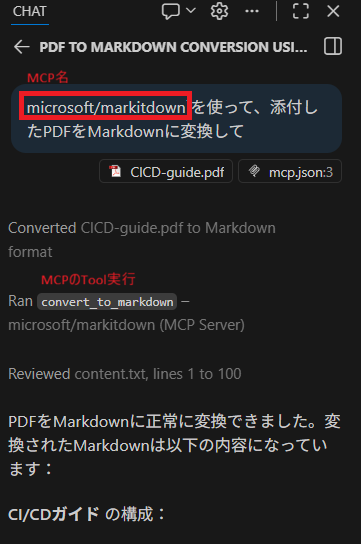
InformationIn the example, we only instruct the conversion, but when invoking from an AI agent, you can perform various operations depending on the prompt, such as saving the result to a file.
If you want to process the MCP response further, define the necessary prompts in the AI agent and execute them.Information■ The expected result is not returned
The Markitdown used here only has theconvert_to_markdowntool, but if you are using an MCP server with multiple tools, you will not get the expected result unless you invoke the intended tool.
If the tool being executed differs from what you expected, specify it explicitly. - Execute with natural language by passing the MCP server name and the file to convert.
-
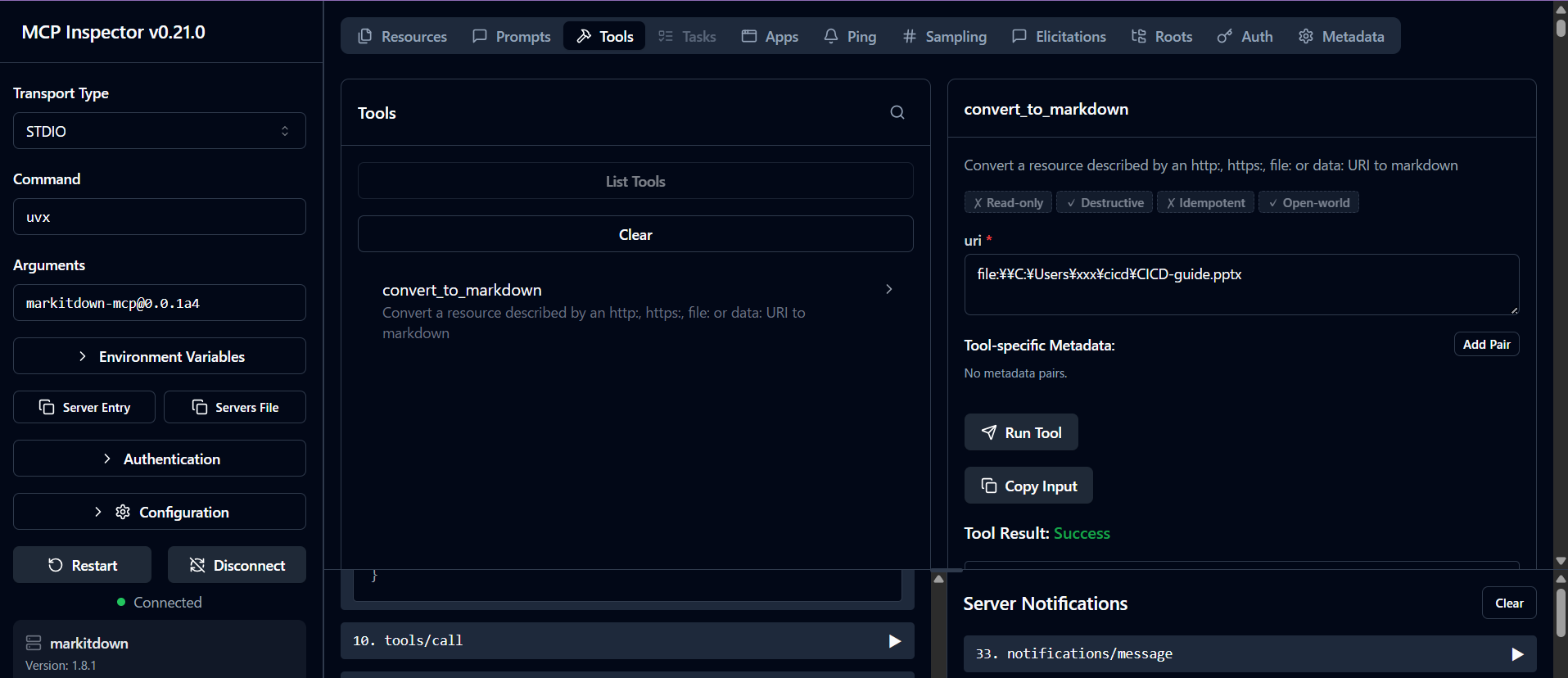
Example of invocation from an MCP client
- Start MCP Inspector locally and invoke the
convert_to_markdowntool.
- Start MCP Inspector locally and invoke the
-
-
Stop the MCP server
After verification, stop the server using one of the following methods:- Press Ctrl+C in the terminal
- Stop from VS Code's Extensions panel
- Stop from
.vscode/mcp.json
Summary
#We actually verified launching microsoft/markitdown with the MCP extension in VS Code and converting PDFs to Markdown.
We used Markitdown as an example, but you can apply this approach to other MCP servers by preparing according to what is described in mcp.json.
If there's an MCP server you want to use, install it and empower your AI agents.