Free OSS Tool SysON for SysMLv2 Modeling (4) - Creating Part Usages
Back to Top
To reach a broader audience, this article has been translated from Japanese.
You can find the original version here.
In the previous article, "Free OSS Tool SysON for SysMLv2 Modeling (3) – Creating Part Definitions", we created a Part Definition.
In this article, we will create Part Usages.
The version of SysON used in this article, as in the previous one, is v2025.8.0.
SysON is still evolving, so its behavior may differ from the latest release.
Thank you for your understanding.
The modeling example is borrowed from the SysMLv2 specification A Annex: Example Model.
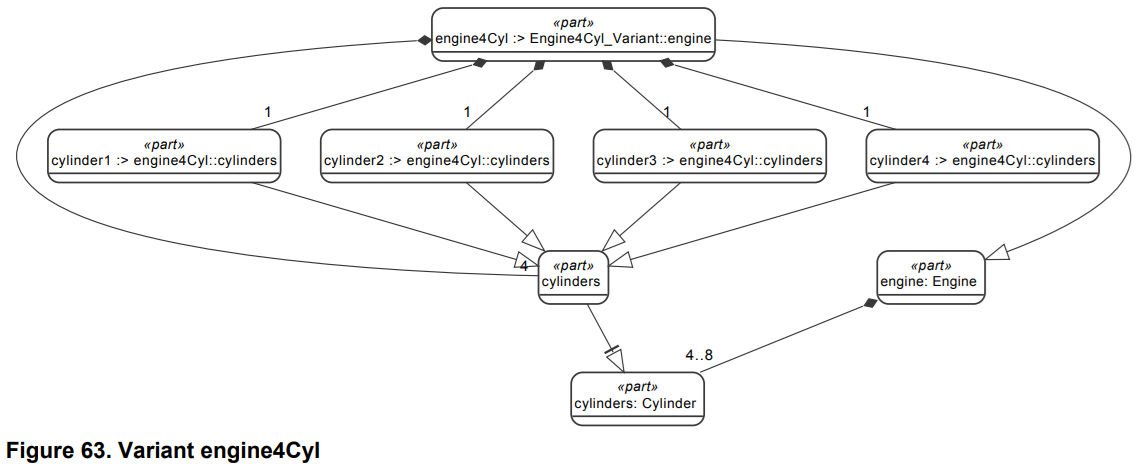
Let’s create "Figure 63. Variant engine4Cyl".
Creating a New Part Usage
#If you right-click on General View to open the context menu and select "Structure" > "New Part", "part1" will be added to the General View.
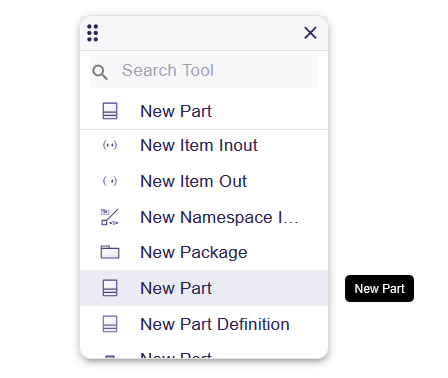
There is another way to add elements.
In the left sidebar tree, click the kebab icon (︙) to the right of an element such as a package.
In the dialog that appears, select Part and press the "CREATE" button to add a new element within the specified element.
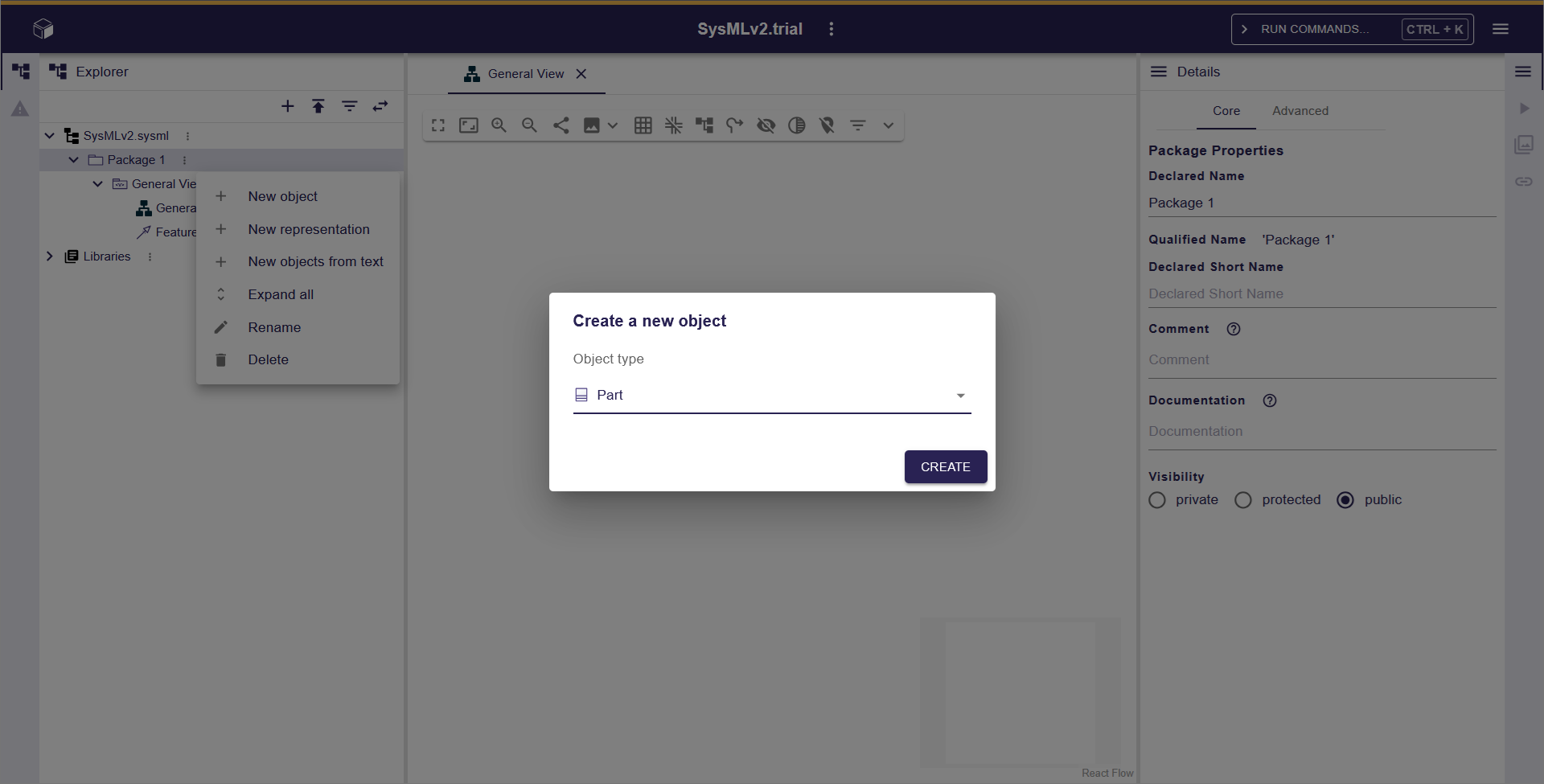
If you drag and drop the added element onto the General View, it will be displayed using graphical notation.
Creating a definition between Part Definition and Part Usage
#Following the steps in the previous article, create a Part Definition and rename it to "Engine".
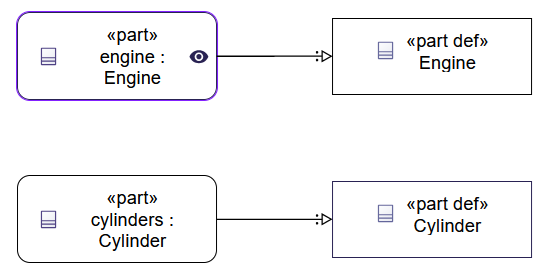
Next, create a Part Usage and rename it to "engine".
Select "engine" and drag the triangle (>) displayed outside one of the four sides to "Engine" to open the context menu.
If you select "New Feature Typing" in the context menu, you can create a definition between the Part Definition and the Part Usage.
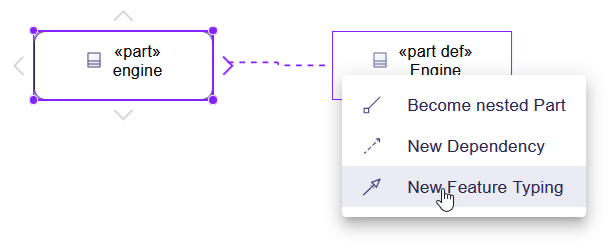
The definition is represented by a hollow triangle with a line that has two dots.
Let’s create another set between the Part Definition "Cylinder" and the Part Usage "cylinders".
Creating a composite-feature-membership between Part Usages
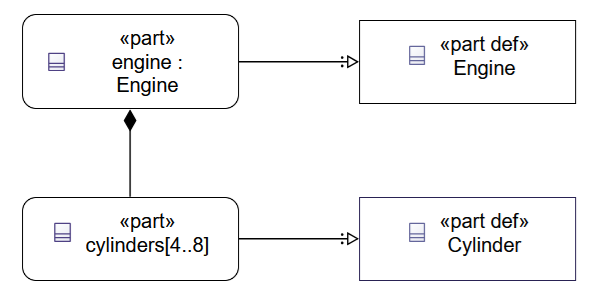
#Create a composite-feature-membership between "engine" and "cylinders".
Select "engine" and drag the triangle (>) displayed outside one of the four sides to "cylinder" to open the context menu.
If you select "Add as nested Part" in the context menu, you can create a composite-feature-membership between the Part Usages.
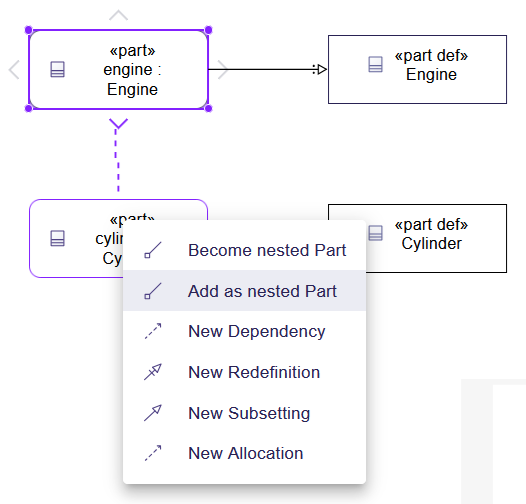
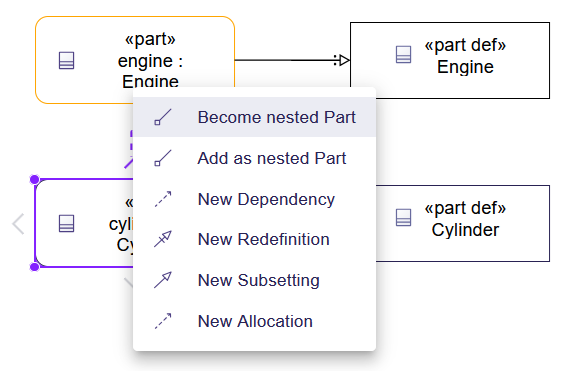
If you drag and drop from "cylinders" to "engine", you can similarly create it by selecting "Become nested Part" in the context menu.
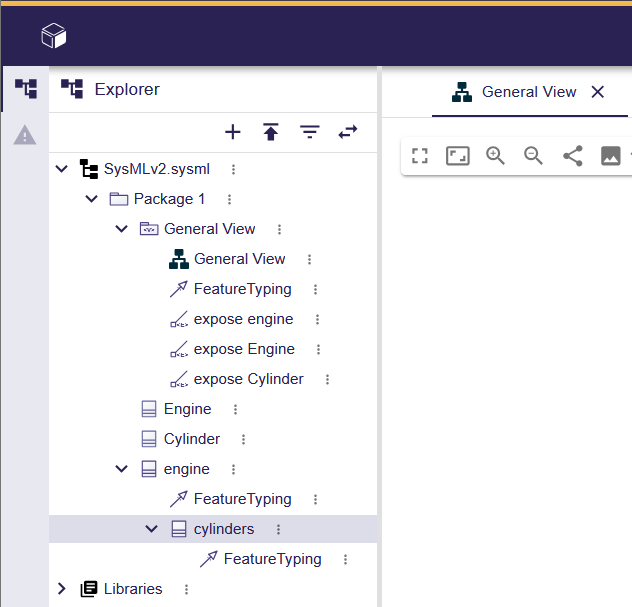
You can also create it by dragging and dropping "cylinders" onto "engine" in the tree on the left sidebar.
A composite-feature-membership is represented by a line with a filled diamond.
Creating a noncomposite-feature-membership between Part Usages
#Change the relationship between "engine" and "cylinders" to a noncomposite-feature-membership.
A noncomposite-feature-membership indicates that the usage is by reference.
Therefore, modify the settings of the usage being referenced.
Select the referenced "cylinders" and choose the Advanced tab in the Details panel on the right sidebar.
Uncheck Is Composite here.
Then Is Reference will be checked, and the stereotype of "cylinders" in the editor will change to «ref part».
At the same time, the relationship between "engine" and "cylinders" changes to a noncomposite-feature-membership (hollow diamond).
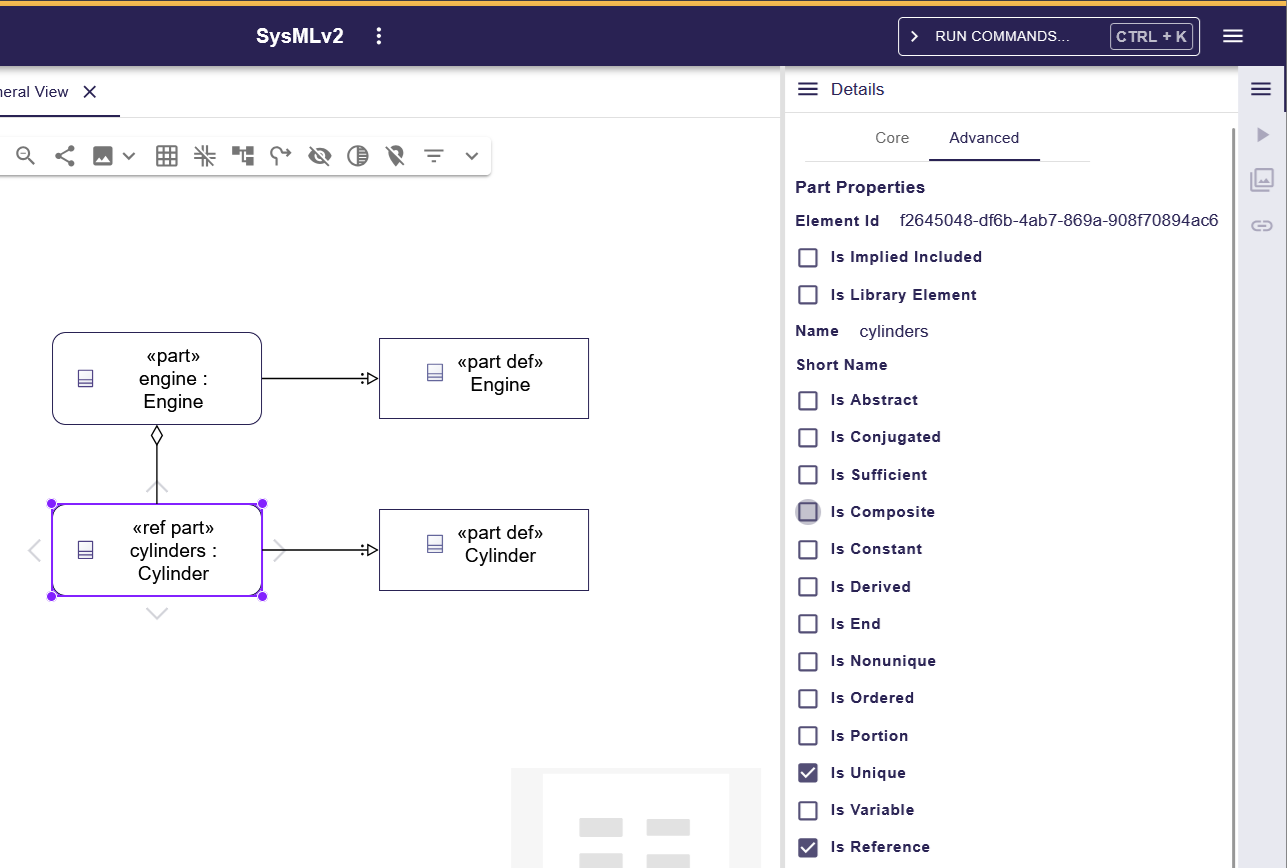
To revert, check Is Composite.
Setting Multiplicity on Usage
#Set the multiplicity of "cylinders" to "4..8".
Select "cylinders" and press F2 or use Edit to enable direct editing.
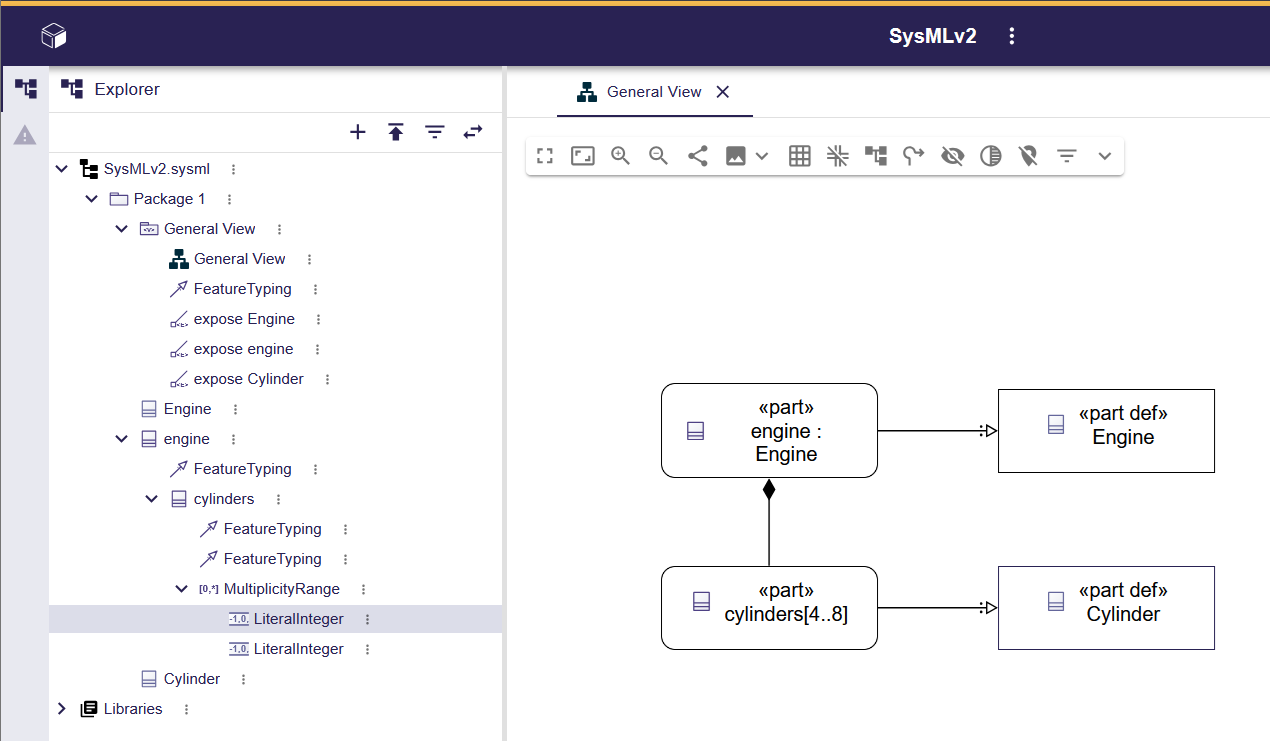
Then change "cylinders" to "cylinders[4..8]".
This adds a MultiplicityRange under "cylinders" in the tree on the left sidebar.
Inside the MultiplicityRange, there are two LiteralIntegers: one with a value of 4 and the other with a value of 8.
When editing "cylinders", it may change to "cylinders[4..8] : ShapeItems::Cylinder".
At this point, the "Cylinder" from the ShapeItems Library is selected as the definition.
In this case, you can correct it with the following steps:
- In the Details panel on the right sidebar, delete the "Cylinder" set in Typed by.
- In the left sidebar tree, delete the "FeatureTyping" under "cylinders" from the model.
- Recreate the definition between "cylinders[4..8]" and "Cylinder".
Creating a subsetting between Part Usages
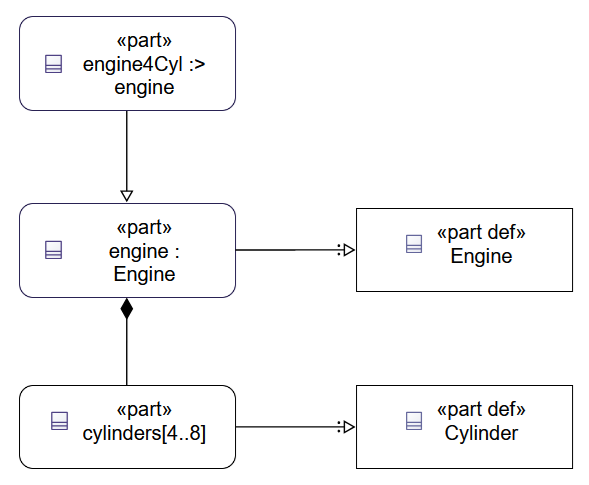
#Create a subsetting between "engine" and "engine4Cyl".
Create a Part Usage and rename it to "engine4Cyl".
Select "engine4Cyl" and drag the triangle (>) displayed outside to "engine : Engine".
In the context menu that appears, select "New Subsetting".
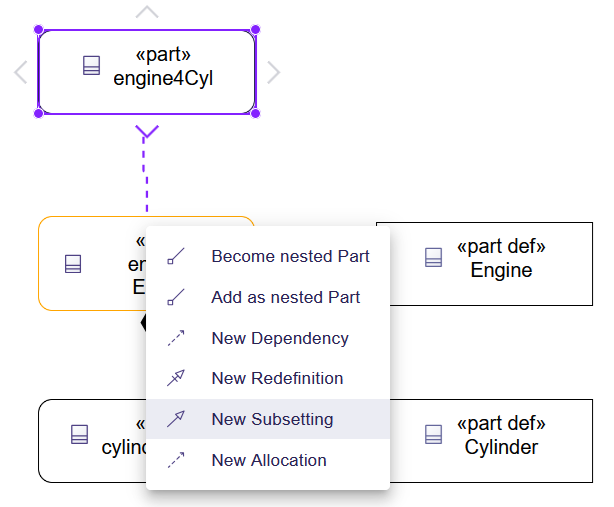
A subsetting is represented by a line with a hollow triangle.
Creating a redefinition between Part Usages
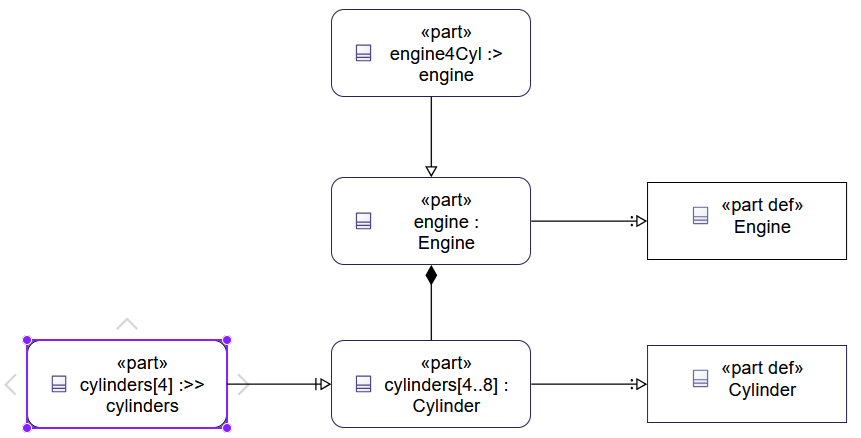
#Create a Part Usage for "cylinders[4]" and create a redefinition between it and "cylinders[4..8]".
Select "cylinders[4]" and drag the triangle (>) displayed outside to "cylinders[4..8]".
In the context menu that appears, select "New Redifinition".
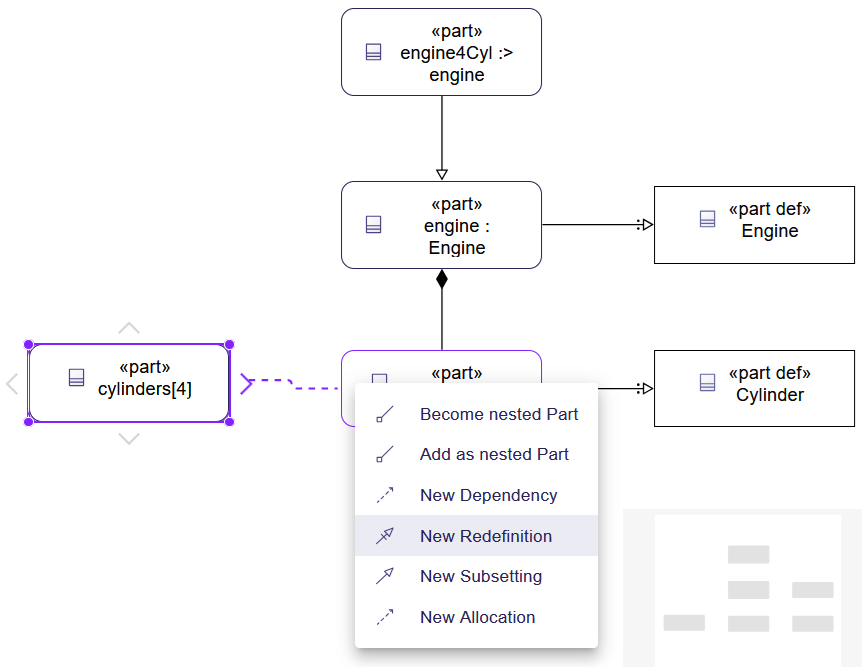
A redefinition is represented by a line with a hollow triangle and a single line.
Completing the View
#Create four Part Usages: "cylinder1[1]", "cylinder2[1]", "cylinder3[1]", and "cylinder4[1]".
Create subsettings between these four Part Usages and "cylinders[4]".
Also, in addition to those four Part Usages, create a composite-feature-membership between "cylinders[4]" and "engine4Cyl".
Select the composite-feature-membership between "engine4Cyl" and "cylinders[4]".
Right-click to open the context menu and select "Show/Hide" > "Hide".
If you remove the two Part Definitions "Engine" and "Cylinder" from the diagram (not from the model), you get the following:
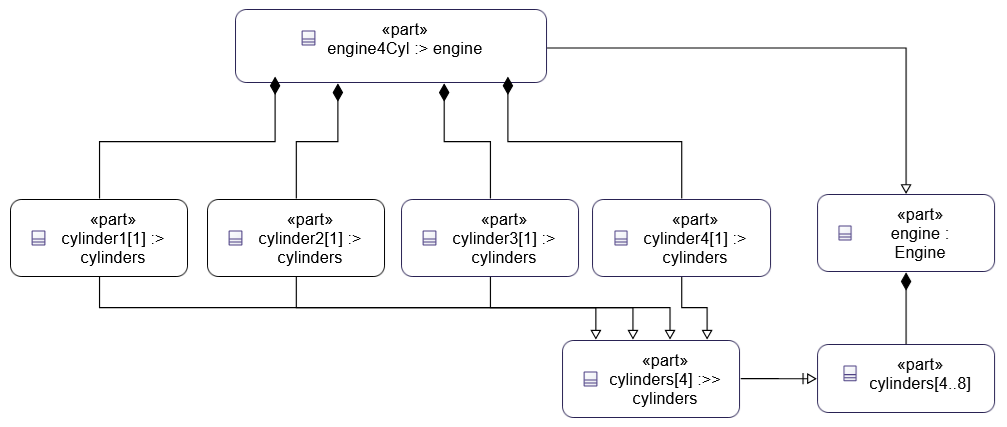
It may not be "exactly the same" as the example, but an equivalent model has been created.
Next Time
#In this article, we created Part Usage elements and modeled the structure.
Next time, we will create Action Definitions and Action Usages, the model elements for behavior.